
10.0.0.1 IP
10.0.0.1 is a private IPv4 address that some routers, network devices, and specialized WiFi systems use as a local gateway. When your device is connected to a network that uses this address, you may be able to open the router’s web-based administration interface by entering 10.0.0.1 directly into your browser’s address bar.
Through the available admin interface, depending on the router or network system, you may be able to change WiFi settings, manage connected devices, configure network options, update security settings, and perform other administrative tasks. Some Piso WiFi systems also use 10.0.0.1 for local management and related portals.
10.0.0.1 login guide with admin access, default credentials, WiFi settings, troubleshooting, Piso WiFi, pause time, and more.
What Is 10.0.0.1?
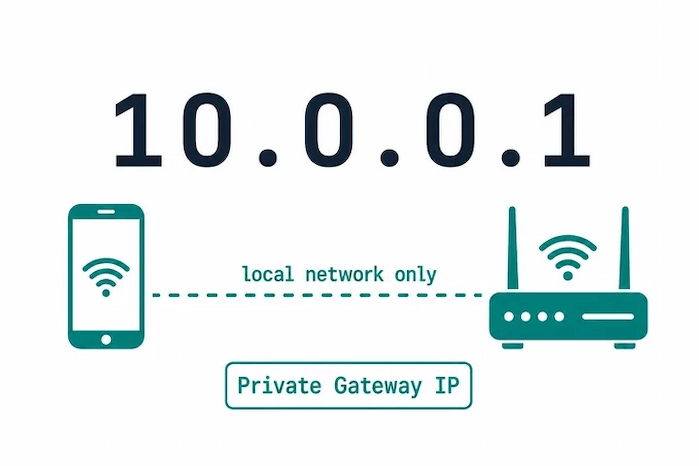
10.0.0.1 is a private IPv4 address. Private addresses are used within local networks rather than being directly accessible as public internet addresses. A router can use 10.0.0.1 as its local gateway, allowing devices connected to the network to communicate with the router and, where supported, access its web-based settings.
The exact interface available at 10.0.0.1 depends on the device. Not every router uses this address, so if it does not open, your router may use another gateway such as 192.168.1.1 or 192.168.0.1.
Is 10.0.0.1 a Public or Private IP Address?
10.0.0.1 belongs to the private IPv4 range 10.0.0.0–10.255.255.255. It is therefore intended for use inside private networks.
This means you generally need to be connected to the appropriate local network before the address can be used to access a router’s local interface.
What Is 10.0.0.1 Used For?
When a router or network device uses 10.0.0.1 as its gateway, it may provide access to settings such as:
- WiFi network name (SSID)
- WiFi password
- Administrator credentials
- Connected devices
- DHCP settings
- DNS settings
- Wireless security
- Guest network options
- Firmware and system settings
- Network configuration
The exact options vary by manufacturer, model, firmware, ISP configuration, and network setup.
How to Login to 10.0.0.1
If your router uses 10.0.0.1 as its local gateway, accessing the login page is straightforward.
Step 1: Connect to Your Router
Connect your computer or phone to the router’s WiFi network. If possible, you can also use an Ethernet cable for a more reliable connection.
Step 2: Open a Web Browser
Open Chrome, Edge, Firefox, Safari, or another modern browser.
Step 3: Enter 10.0.0.1 Correctly
Type the following into the browser’s address bar:
Then press Enter.
Do not type the address into Google or another search engine. The IP address should be entered directly into the browser address bar.
Step 4: Enter Your Login Credentials
If the router provides an administration page, you should see a login screen requesting a username, password, or both.
Enter the administrator credentials associated with your router.
Step 5: Open the Admin Panel
After successful authentication, the available router dashboard or administration interface should appear. The layout and available settings differ between devices.
Important: 10.0.0.1 is not guaranteed to be the correct address for every router. If nothing opens, verify your device’s default gateway before changing router settings.
10.0.0.1 Default Username and Password
There is no single universal username and password for every router that uses 10.0.0.1.
Some devices may have manufacturer-defined default credentials, while others use credentials printed on the router label or supplied by an ISP. In some cases, the administrator password is created during the initial setup.
Common Default Usernames
Depending on the router, you may encounter usernames such as:
- admin
- user
- administrator
However, these are only examples and should not be treated as universal credentials.
Common Default Passwords
Some older or basic routers may use a default password printed on the device or supplied in its documentation. Others require a unique password.
Check:
- The label on the router
- The user manual
- Your ISP’s setup information
- The manufacturer’s official documentation
Admin Password vs WiFi Password
These two passwords are not necessarily the same.
The WiFi password allows devices to connect to the wireless network. The admin password protects access to the router’s configuration interface.
If you can connect to WiFi but cannot log in to 10.0.0.1, you may simply be using the WiFi password where an administrator password is required.
10.0.0.1 Admin Panel
The 10.0.0.1 admin panel is the router’s local configuration interface when the device uses this IP as its gateway.
Depending on the device, the panel may allow you to manage:
- Wireless networks
- Network addresses
- Connected clients
- Security settings
- DHCP
- DNS
- Guest networks
- Firmware
- Access controls
- Router restart and reset options
Do not change settings that you do not understand. An incorrect network configuration can prevent devices from connecting properly.
What Can You Do After Logging In to 10.0.0.1?
The exact options vary, but common router administration tasks include the following.
Change Your WiFi Name
The wireless network name is usually called the SSID. You can often change it from the wireless or WiFi settings section.
Choose a recognizable name that does not expose unnecessary personal information.
Change Your WiFi Password
If your router allows it, you can create a new wireless password from the WiFi security settings.
Use a strong password rather than a simple name, phone number, or easily guessed phrase.
Change the Admin Password
Changing a default administrator password can help protect the router’s configuration interface.
Use a unique password and store it somewhere secure.
View Connected Devices
Many routers provide a client list showing devices currently connected to the network.
The exact information may include device names, IP addresses, MAC addresses, or connection status.
Configure Network Settings
Depending on the router, the admin interface may provide options for DHCP, LAN settings, DNS, wireless channels, guest networks, and other network functions.
Update Router Firmware
Some routers provide firmware-update controls through their administration interface. Keeping supported firmware updated can improve security, stability, and functionality.
Always follow the manufacturer’s instructions before performing a firmware update.
Restart or Reset the Router
A normal restart can resolve temporary connection problems. A factory reset is different because it can erase customized settings and return the device to its default configuration.
Use a factory reset only when appropriate and make sure you know how to set the router up again afterward.
How to Find Your Router’s IP Address
If 10.0.0.1 does not open, do not assume the router is broken. Your device may simply use another gateway address.
Windows
On Windows, open Command Prompt and run:
ipconfig
Look for the Default Gateway entry under the network adapter currently being used.
macOS
Open your network settings and inspect the details for the active WiFi or Ethernet connection. The router or gateway address identifies the local router.
Android
Open the connected WiFi network’s details. Depending on the Android version and manufacturer, the gateway or router address may be displayed in the network information.
iPhone and iPad
Open WiFi settings, select the connected network, and look for the Router field.
If the listed gateway is 192.168.1.1 or another address instead of 10.0.0.1, use the gateway shown by your device.
10.0.0.1 Not Working? Troubleshooting Guide
Several issues can prevent the 10.0.0.1 login page from appearing.
10.0.0.1 Does Not Open
First verify that your device is connected to the correct router or local network.
Then check your default gateway. Your router may not actually use 10.0.0.1.
10.0.0.1 Refused to Connect
A connection refusal can occur for several reasons, including an incorrect address, a router interface that is unavailable, or a configuration issue.
Confirm the gateway and try again.
10.0.0.1 Takes Too Long to Respond
Check your network connection and make sure the router is powered on.
If possible, try accessing the address from another device connected to the same network.
The Login Page Is Blank
Try refreshing the page or opening it in another browser. Clearing cached browser data can also help with certain interface-loading problems.
Username or Password Is Incorrect
Verify that you are using the router’s administrator credentials, not necessarily the WiFi password.
If the administrator password was previously changed, the original default password may no longer work.
You Are Connected to the Wrong Network
If you have multiple routers, repeaters, mobile hotspots, or access points nearby, make sure your device is connected to the network associated with the router you are trying to configure.
Try Another Browser
If the router’s web interface does not display correctly, try another browser or device.
Check VPN or Proxy Settings
A VPN or certain proxy/network configurations can interfere with access to local network addresses. Temporarily checking the connection without these services can help identify the cause.
Restart the Router
Power-cycle the router and wait for it to reconnect before trying 10.0.0.1 again.
Factory Reset
A factory reset should be considered a last resort because it can remove custom WiFi, network, and administrator settings.
After resetting, you may need the manufacturer’s setup instructions to configure the router again.
10.0.0.1 and Common IP Address Mistakes
People often type private IP addresses incorrectly.
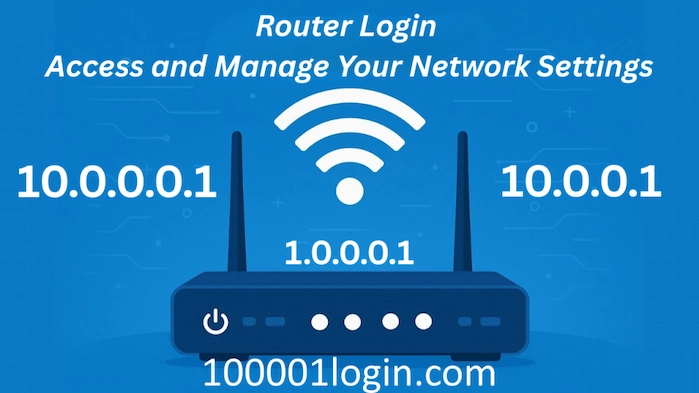
10.0.0.0.1 vs 10.0.0.1
These are not the same address.
10.0.0.1 is a valid IPv4 address.
10.0.0.0.1 contains five numerical sections and is not a valid IPv4 address.
Other Common Typing Mistakes
You may also see searches such as:
- .10.0.0.1
- 10.0.0.1.
- www.10.0.0.1
- /10.0.0.1
- http //10.0.0.1/
These variations should not be used as substitutes for the actual local gateway address.
For a typical browser login, enter:
directly into the address bar.
10.0.0.1 for Piso WiFi
10.0.0.1 can also appear in Piso WiFi environments, where it may be used as a local gateway or management address depending on the system’s configuration.
Piso WiFi setups can include features such as vending access, user sessions, captive portals, vouchers, and time-based access.
Because implementations differ, not every Piso WiFi system will use exactly the same interface or URL.
How to Access 10.0.0.1 Piso WiFi
Connect to the appropriate Piso WiFi network and open the local gateway address in your browser.
If 10.0.0.1 does not respond, verify the gateway used by the particular Piso WiFi installation.
10.0.0.1 Piso WiFi Admin
An administrative interface may allow the operator to manage network and access settings.
The available options depend on the hardware and software configuration.
Piso WiFi Vendo
Piso WiFi vending systems can provide paid or time-based network access. A local management interface may be used to configure or monitor aspects of the system.
For detailed information, see our 10.0.0.1 Piso WiFi Vendo guide.
Piso WiFi Pause Time
Some Piso WiFi systems provide a pause feature that allows an active session’s remaining time to be temporarily stopped and later resumed.
The exact process depends on the particular Piso WiFi implementation.
See our dedicated 10.0.0.1 Piso WiFi Pause Time guide for more information.
Piso WiFi Voucher
Some systems use vouchers or codes to provide network access for a specific amount of time or according to predefined rules.
Voucher behavior varies by system, so use the instructions associated with the particular Piso WiFi setup.
Piso WiFi Client Portal
A Piso WiFi network may also provide a captive portal where users authenticate, purchase access, enter vouchers, or view their session information.
10.0.0.1 Client Dashboard and Portal
Some router or Piso WiFi systems may expose additional local paths for client-facing or dashboard interfaces.
You may encounter searches involving:
- 10.0.0.1/client
- 10.0.0.1/client?page=dashboard
- 10.0.0.1/portal.html
- Captive portal URLs
These paths are not universal 10.0.0.1 standards. They depend on the software running on the particular device.
What Is the 10.0.0.1 Client Page?
A /client path may refer to a client-facing interface on a particular network system.
It should not be assumed that every router has such a page.
10.0.0.1 Client Dashboard
Where supported, a client dashboard may show information related to users, sessions, access time, or network usage.
10.0.0.1 Portal
A portal can be a login or captive-portal interface presented to users before they receive network access.
Admin Panel vs Client Portal
The admin panel is intended for network administration.
The client portal is generally intended for network users.
These interfaces serve different purposes even though they may operate on the same local IP address.
10.0.0.1 Status, Home and Admin URLs
You may encounter searches for paths such as:
- 10.0.0.1/status
- 10.0.0.1/home
- 10.0.0.1/admin
- 10.0.0.1/login
- 10.0.0.1/portal.html
These are not universal paths.
A router manufacturer or Piso WiFi system can choose its own interface structure. Therefore, a URL that works on one device may return an error or redirect on another.
Start with the base address:
Then use the interface provided by your device rather than guessing internal paths.
10.0.0.1 Security Tips
Once you have access to your router’s administration interface, take a few basic security precautions.
Change the Default Admin Password
If your router uses a default administrator password, change it to a strong, unique password where supported.
Use a Strong WiFi Password
Avoid passwords based on your name, address, phone number, or other easily guessed information.
Use Modern Wireless Security
When supported by your router, use modern wireless security such as WPA2 or WPA3 rather than outdated security protocols.
Keep Firmware Updated
Check for firmware updates from the router manufacturer and follow the recommended installation procedure.
Disable Unnecessary Remote Administration
If you do not need remote management from outside the local network, disabling unnecessary remote-access features can reduce exposure.
Protect Your Admin Credentials
Never share administrator credentials casually. Anyone with access to the router’s administration interface may be able to change important network settings.
10.0.0.1 vs Other Router IP Addresses
Both can be used as private local gateway addresses, but they are different IP addresses.
Which one works depends on your router’s configuration.
10.0.0.1 vs 192.168.0.1
Again, both can be used by routers as local gateway addresses.
If 10.0.0.1 does not open, check the default gateway assigned to your device rather than randomly trying addresses.
Router Brands and 10.0.0.1
Different router manufacturers and ISPs can configure different default gateway addresses.
Even when two routers use the same gateway, their login screens, credentials, and available settings can be completely different.
How to Check Your Router Model
Look for the model number on:
- The router label
- The device packaging
- The manufacturer’s documentation
- Your ISP’s setup information
Then use the documentation for that specific model when you need manufacturer-specific instructions.
Frequently Asked Questions About 10.0.0.1
What is 10.0.0.1?
10.0.0.1 is a private IPv4 address that can be used as a local gateway by routers and other network systems.
How do I log in to 10.0.0.1?
Connect to the relevant network, open a browser, enter http://10.0.0.1 in the address bar, and provide the administrator credentials if a login page appears.
What is the default username and password for 10.0.0.1?
There is no universal credential combination. The correct username and password depend on the router, manufacturer, ISP, and whether the credentials have previously been changed.
Why can’t I access 10.0.0.1?
Your router may use a different gateway, your device may be connected to another network, or the router’s local interface may have a configuration or connectivity problem.
Can I change my WiFi password through 10.0.0.1?
If your router provides wireless configuration through its admin interface, you can usually change the WiFi password there.
Is 10.0.0.0.1 the same as 10.0.0.1?
No. 10.0.0.0.1 is not a valid IPv4 address. 10.0.0.1 is the correct four-part IPv4 format.
Can I access 10.0.0.1 from my phone?
Yes, if your phone is connected to the relevant local network and the router uses 10.0.0.1 as its gateway. Open the address directly in your mobile browser.
What is 10.0.0.1 used for in Piso WiFi?
Depending on the particular Piso WiFi system, 10.0.0.1 may provide access to a local management interface, client portal, or related network functionality.
How does Piso WiFi pause time work?
Where a Piso WiFi system supports pausing, the feature can temporarily stop an active session’s remaining time. The exact controls depend on the system’s configuration.
What is the 10.0.0.1 client dashboard?
A client dashboard can be a local interface used by a particular router or Piso WiFi system to display or manage client-related information. It is not a standard feature of every 10.0.0.1 router.
Related 10.0.0.1 Guides
For more detailed information, explore our dedicated guides covering specific 10.0.0.1 topics:
- 10.0.0.1 Login – Detailed router admin login instructions and troubleshooting.
- 10.0.0.1 Piso WiFi – A complete guide to 10.0.0.1 and Piso WiFi systems.
- 10.0.0.1 Piso WiFi Pause Time – Learn about pausing and resuming available session time.
- LPB Piso WiFi 10.0.0.1 – Information about LPB-related Piso WiFi access.
- 10.0.0.1 Piso WiFi Vendo – Vendo login and management information.
- 10.0.0.1 Client Dashboard – Client, portal, and dashboard-related information.
- 10.0.0.1 Piso WiFi Voucher Code – Information about voucher-based Piso WiFi access.